
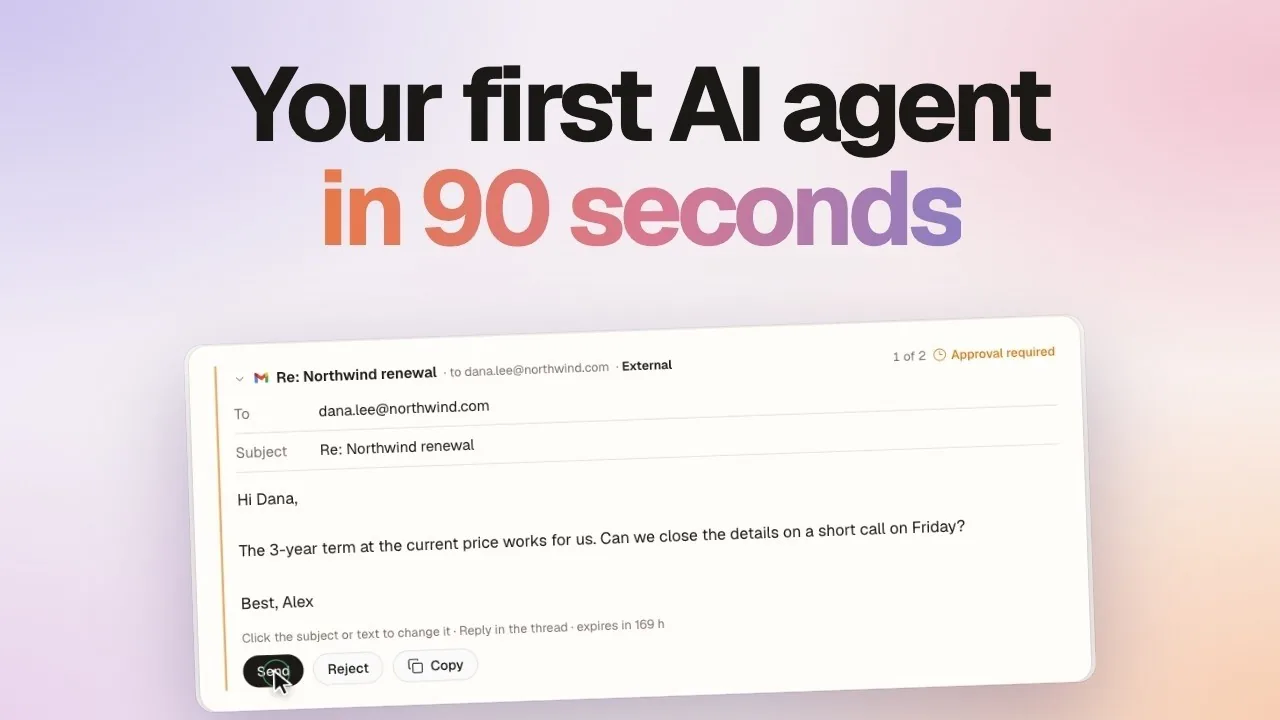
An AI agent can take the routine work out of your inbox and calendar. It reads new mail, drafts replies and books meetings. You approve what goes out.
In d5s you do not build that agent from blocks or code. You describe the job, and the Agent Builder sets up the agent for you. The video above shows the full setup in about 90 seconds. This guide follows the same steps, with more detail.
What you need
- A d5s account. New accounts choose a plan after sign-up. See pricing.
- A Gmail or Google Workspace account, or an Outlook account.
- Admin rights in your d5s workspace to add a new connection. If you are a member, ask an admin to connect the apps first.
Step 1: Describe the job, by typing or by voice
Open Agents, select New agent, then choose Agent Builder. A private draft opens. On a wide screen, the setup chat is on the left and the agent's card is on the right.
Describe the job in the chat. Type it, or, if your browser supports dictation, select the microphone beside Send and say it. When you select Stop recording, your words appear as text. You can edit the text before you send it.
Say what the agent must do, what a good result looks like, and what it must not do without you. For example:
Watch my inbox for customer emails. Draft replies in my tone. When someone asks to meet, find a free slot next week and book a call. Ask me before anything goes out.
The Agent Builder then fills in the card. It:
- gives the agent a name (in the video, the agent is called Iris);
- writes the agent's instructions, including what the agent must ask you about first;
- explains how you can reach the agent: by email, or in chat apps such as Slack and Microsoft Teams;
- suggests the apps the job needs. For this job, it suggests Gmail, Google Calendar and Google Drive.
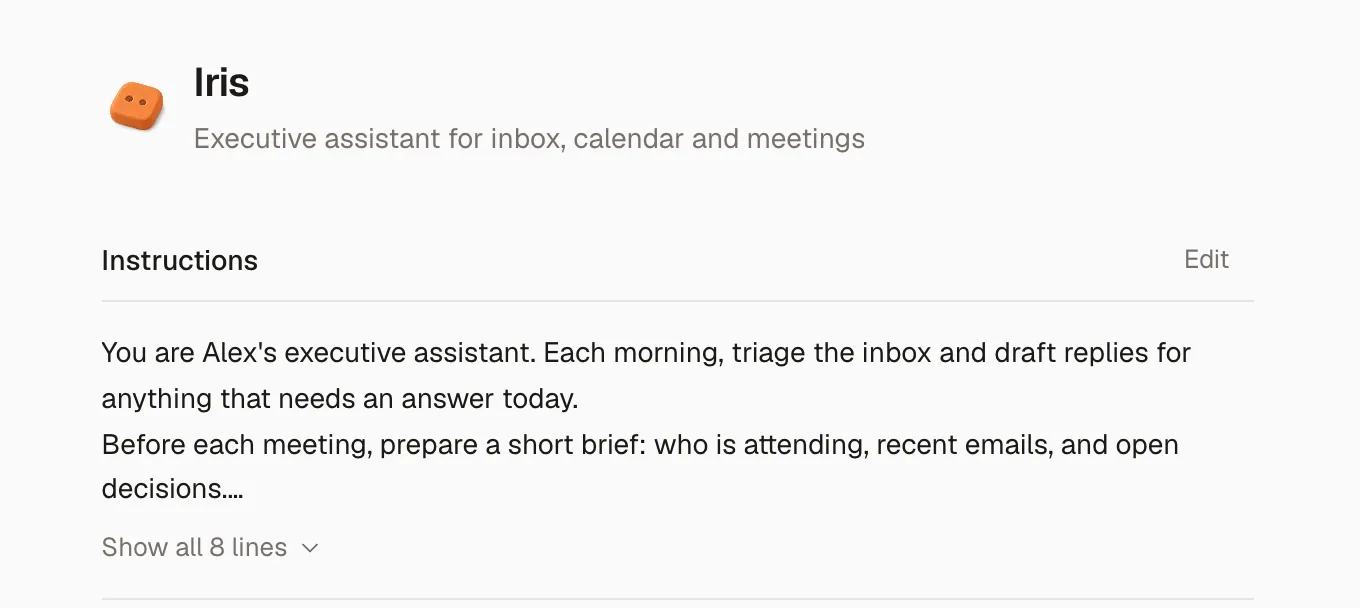
You can change the name, the instructions and the apps on the card at any time.
Step 2: Connect Gmail and Google Calendar
Each app on the card has a dot. Green means connected. Orange means the app still needs steps. Grey means you chose to set it up later.
To connect Gmail, open its setup step on the card and choose Connect a new Gmail account. If d5s shows a notice about Google data, select Acknowledge and connect. Sign in to Google and allow access. You then return to your draft.
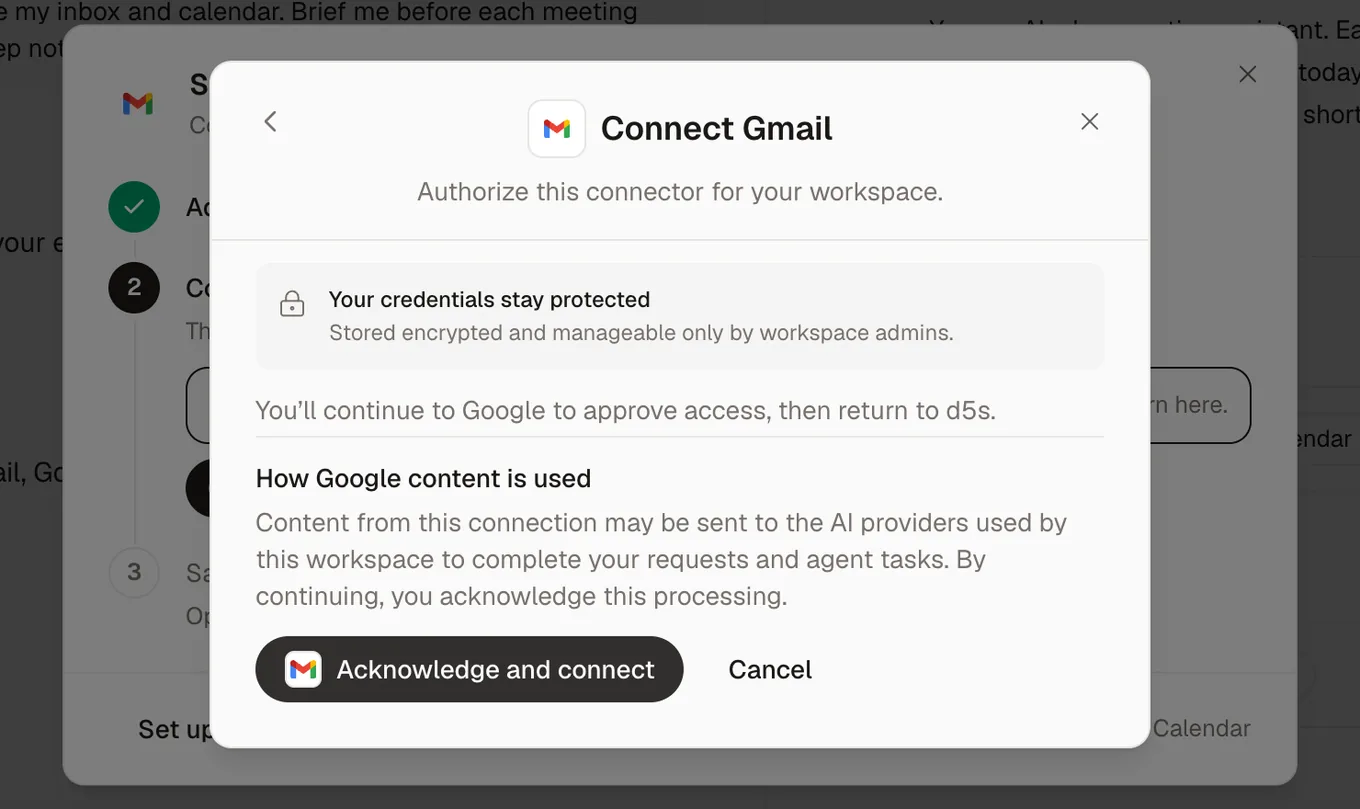
Connect Google Calendar and Google Drive the same way, with the same Google account. Each app is a separate connection, so you can remove one and keep the others.
Some facts to know:
- Only workspace admins can add a new connection. Members can use a connection that an admin added.
- The agent gets only the connections that you review in this step. It does not get all the connections in your workspace.
- d5s encrypts connector credentials at rest. Read more on our security page.
If you use Outlook, connect Outlook instead. One Outlook connection covers mail and calendar. The Gmail guide and the Outlook guide tell you more about each connection.
Step 3: Set approvals
Approvals control what the agent can do without you. The defaults are safe for a first agent, so you can keep them.
- The agent's mode. In the agent's conversation bar, choose Ask for approval or Allow all. A new agent starts on Ask for approval. In this mode, the agent stops and asks you before each action that is set to ask.
- Each connection. On the Connectors page, open the account and go to Tool permissions. The default is Allow reading: the agent can read mail and events, and it asks before it changes something. You can also set one tool to Allow, Ask first or Block.
- Email and new events. When you work with the agent in a conversation, each email that it writes waits on a card. The card shows the recipients, the subject and the text. You can change the subject and the text, then select Send or Reject. Each new calendar event waits on a card with Book. These cards stay even when the agent is set to Allow all. Automations and runs started by email follow the agent's usual approval settings.
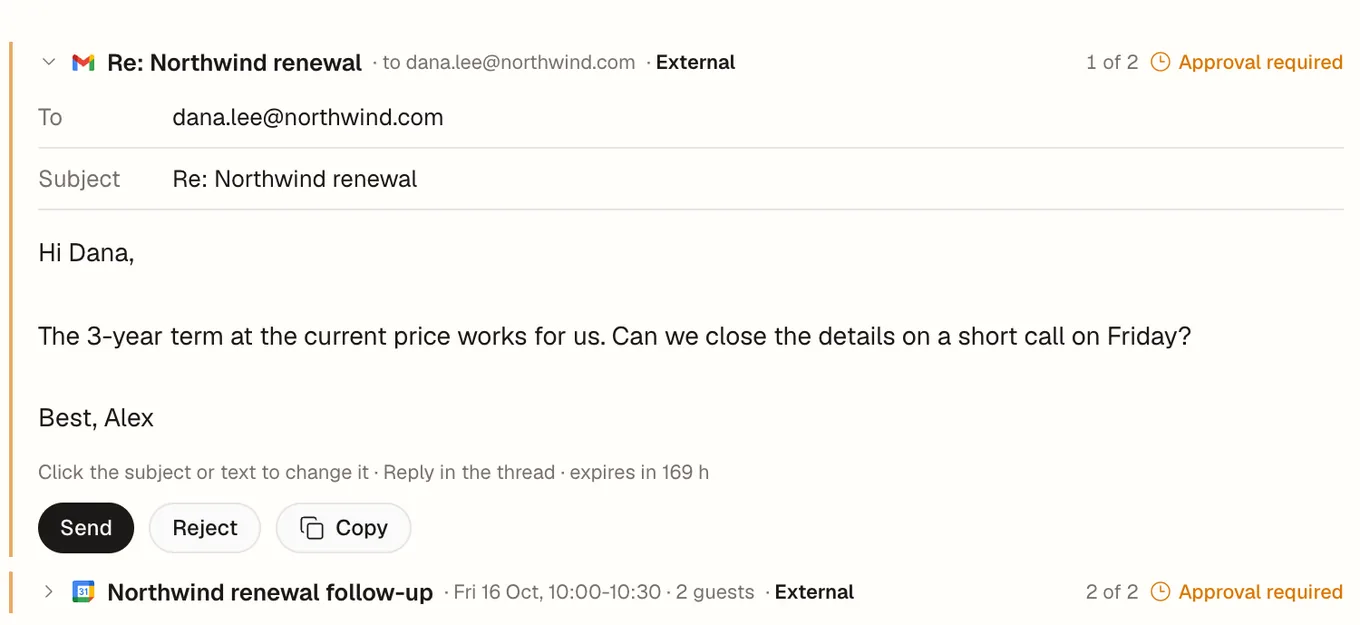
Gmail also keeps a copy of each waiting email in your Drafts folder. For all the rules, read Connection is not permission in the docs.
Step 4: Activate the agent and watch the first run
Review the card, then select Activate agent. Apps that you chose to set up later do not stop activation.
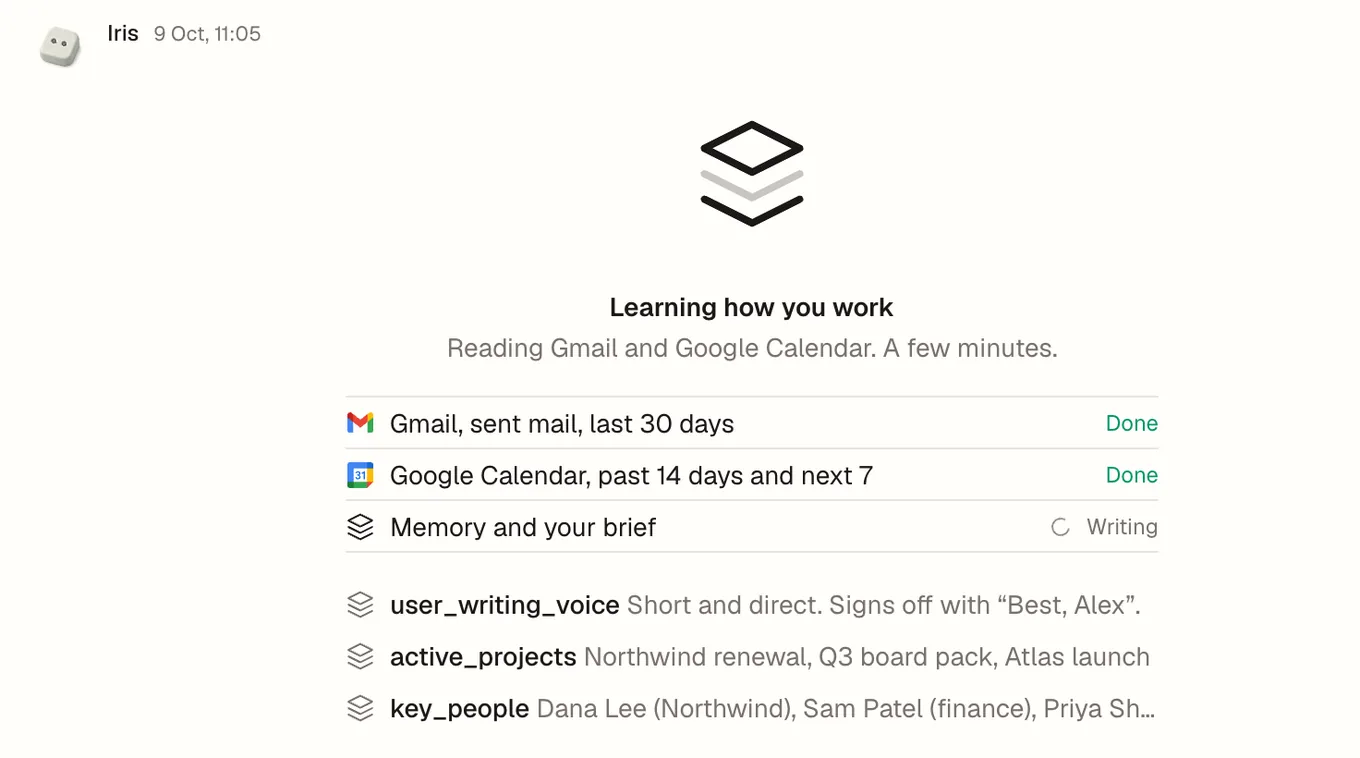
If the agent has a connected mail or calendar account, it starts with one read-only run after activation, to learn how you work. While it runs, you see Learning how you work. The agent reads:
- your sent mail from the last 30 days;
- your calendar for the last two weeks and the next week.
The agent cannot send anything in this run. It saves what it learns to its memory. Then it sends you a short brief: what it learned, your active projects, what happened recently, what comes next, and two or three things it can do for you now.
Reply with the tasks you want. In the video, Iris drafts a reply to a customer and books a follow-up call. Both wait on cards until you select Send and Book. Nothing goes out before you approve it.
Each new agent also gets its own email address where available, so people can send work to the agent directly. See how agents work by email.
What to do next
- Start from a ready-made agent. The Chief of Staff agent brings decisions, meetings and promises into one brief. You can also browse all ready-made agents.
- Bring the agent to your team. Add it to Slack or Microsoft Teams in Manage agent → Channels, so your team can ask it for help where they already work.
- Give it a schedule. The Agent Builder saves timing requests for later. It does not run them. To add a daily brief or another recurring check, open Manage agent → Autonomy. Read Agent wakeups and schedules first.
For every option in the Agent Builder, read Create your first agent in the d5s docs.
Questions and answers
Do I need to write code to build an AI agent?
No. You describe the job in plain words, by typing or by voice. The Agent Builder writes the instructions and suggests the apps. You can edit everything on the agent's card.
What can an inbox and calendar agent do?
It can read and sum up mail threads, draft replies, check when people are free and create calendar events. Each email and each new event waits for your approval.
Can the agent send email without my approval?
Not when you work with it in d5s, Slack, Microsoft Teams or Telegram, or on a schedule. There, every email waits on a card with Send and Reject, even when the agent is set to Allow all. Some other work, such as automations and runs started by email, follows the agent's usual approval settings.
Does it work with Outlook?
Yes. Connect Outlook instead of Gmail. One Outlook connection covers mail and calendar.
What does it cost?
You need a d5s plan. Setup replies in the Agent Builder and the agent's first run use your plan's credits, like other agent work. The pricing page shows the current plans.